
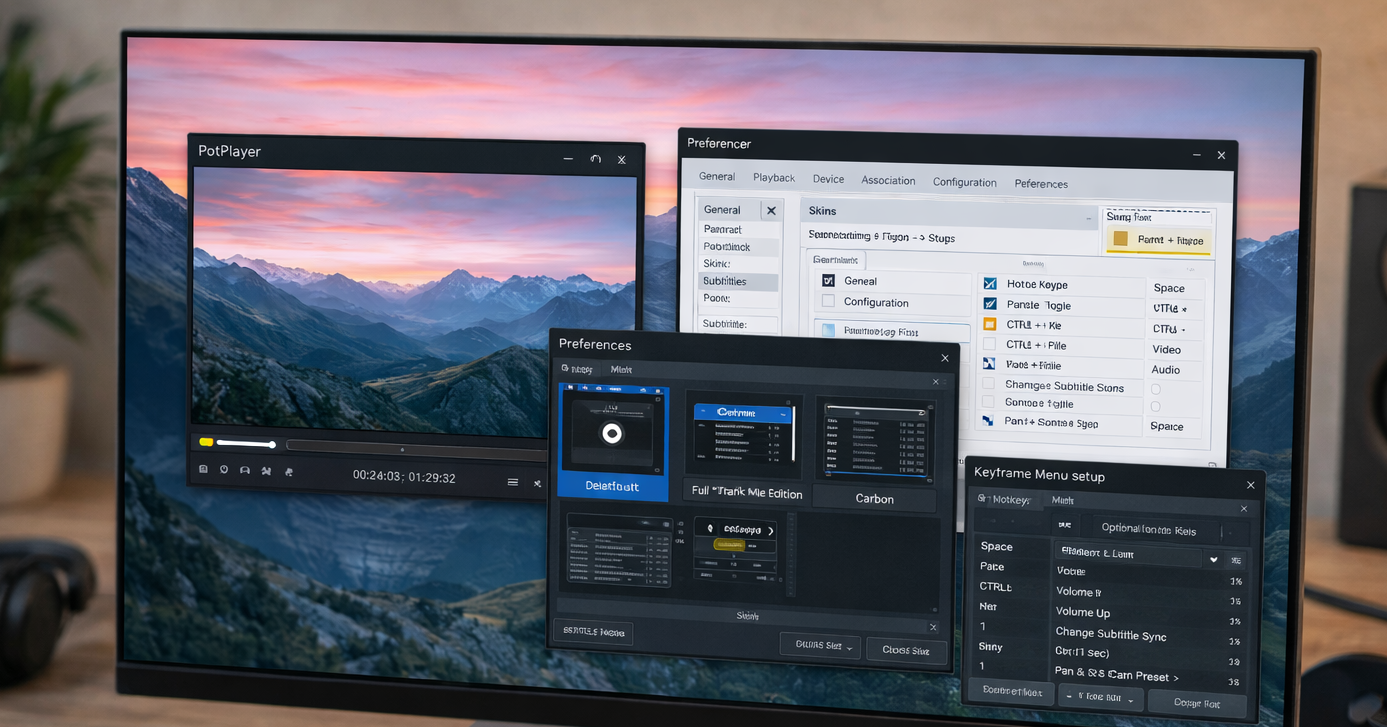
PotPlayer has earned a loyal following among power users for one simple reason: it lets you control almost everything. While many media players focus on simplicity, PotPlayer takes the opposite approach. It gives you deep customization options that let you shape the interface, controls, and playback behavior around your habits instead of forcing you to adapt to defaults.
This guide takes a hands-on look at how to customize PotPlayer in practical ways. You will learn how to adjust the interface, apply and manage skins, and configure hotkeys to build a media player experience that feels fast, personal, and efficient. The tone here is pragmatic and tested, not theoretical.
Why Customization Is PotPlayer’s Greatest Strength
Out of the box, PotPlayer works fine. The problem is that it also hides its best features behind menus that most users never explore. PotPlayer was designed for users who want control over playback, visuals, and input behavior, whether they are watching movies, reviewing clips, or managing large media libraries.
Customization in PotPlayer improves three things at once. It reduces friction during playback, increases visual clarity, and speeds up common actions. Once configured properly, PotPlayer feels less like a generic media player and more like a specialized tool.
Getting Comfortable with the Preferences Menu
Nearly all customization in PotPlayer begins in the Preferences window. You can open it by pressing F5 or by right-clicking the player window and selecting Preferences.
The Preferences menu is extensive and, at first glance, intimidating. Categories are listed on the left, with dense option panels on the right. The key to using it effectively is restraint. You do not need to change everything. Focus on interface, skin, and keyboard settings first, then expand outward as your comfort grows.
PotPlayer applies changes instantly, which encourages experimentation without fear of breaking anything permanently.
Customizing the PotPlayer Interface Layout
PotPlayer’s interface is modular. Buttons, overlays, and information panels can be adjusted or hidden depending on how minimal or detailed you want your player to be.
You can right-click on the playback window and navigate to Skins > Control Area to enable or disable interface elements. Many users prefer a cleaner look by hiding rarely used buttons and relying on keyboard shortcuts instead.
PotPlayer also supports auto-hiding controls. This is useful for fullscreen viewing, where distractions matter. Enabling fade-in controls gives you access when needed while preserving an immersive viewing experience.
For users watching on large displays or TVs, increasing UI scaling and font size improves readability without sacrificing layout integrity.
Working with Skins to Change PotPlayer’s Appearance
Skins are where PotPlayer’s visual personality really comes alive. Unlike basic themes that only adjust colors, PotPlayer skins can change layout, button placement, and overall design philosophy.
PotPlayer supports built-in skins as well as third-party skins. You can access them via Preferences > General > Skin. Built-in skins are lightweight and reliable, making them a good starting point.
Third-party skins are widely available online and range from minimalist designs to media-center-style interfaces. Installing a skin usually involves downloading a .dsf file and placing it in PotPlayer’s skin directory, then selecting it from the skin menu.
A good skin should improve visibility, not just aesthetics. Look for clear progress bars, readable timestamps, and logical button placement. Overdesigned skins often look impressive but slow down navigation.
Adjusting On-Screen Display Information
PotPlayer displays a wealth of on-screen information by default, including codec data, playback time, and file details. While this is useful for diagnostics, it can be distracting during casual viewing.
You can customize on-screen display behavior under Preferences > Playback > OSD. From here, you can reduce clutter by disabling non-essential overlays or adjusting transparency.
Power users often configure OSD to appear only when changing volume, seeking, or switching tracks. This strikes a balance between feedback and visual cleanliness.
Creating a Keyboard-First Workflow with Hotkeys
Keyboard shortcuts are where PotPlayer truly separates itself from mainstream media players. Nearly every function can be assigned to a hotkey, including obscure but powerful features.
You can manage shortcuts under Preferences > General > Keyboard. The list is extensive, but it is also searchable, which makes it manageable.
Common productivity improvements include remapping seek controls, adjusting playback speed, toggling subtitles, and switching audio tracks. Assigning logical shortcuts reduces reliance on menus and keeps your focus on the content.
PotPlayer allows you to override default shortcuts or create entirely new ones. This flexibility is ideal for users coming from other players who want familiar key layouts.
Using Mouse Gestures and Scroll Actions
In addition to keyboard shortcuts, PotPlayer supports mouse-based customization. Scroll wheel behavior can be assigned to volume control, seeking, or playback speed.
Mouse gestures allow actions such as dragging in specific directions to trigger commands. These are especially useful for laptop users or those who prefer minimal keyboard interaction.
Mouse settings are found under Preferences > General > Mouse. While gestures are optional, they can significantly speed up common actions once learned.
Customizing Playback Behavior for Different Content Types
PotPlayer allows conditional behavior based on file type, which is a feature often overlooked. You can configure different defaults for video files, audio-only files, and streaming content.
For example, you might enable visualizations and playlist panels for audio playback while keeping video playback clean and minimal. These options are scattered throughout playback and interface settings but reward careful configuration.
This level of control is especially useful for users who use PotPlayer as both a music player and a video player.
Managing Subtitles and Audio Tracks Efficiently
Subtitles and audio tracks are central to international content consumption, and PotPlayer excels here. You can customize subtitle font, size, color, outline, and positioning under Preferences > Subtitles.
Keyboard shortcuts can be assigned for subtitle delay adjustments, making it easy to sync subtitles on the fly. Audio track switching can also be bound to hotkeys, which is useful for multilingual files.
PotPlayer remembers many of these preferences per file, which reduces repetitive setup for recurring media sources.
Saving and Resetting Custom Configurations
After investing time in customization, it is important to protect your setup. PotPlayer allows you to export configuration files, which can be restored later or transferred to another system.
You can also reset individual sections of preferences if experimentation goes wrong. This granular reset option prevents the need for full reinstallation.
Advanced users sometimes maintain multiple configuration profiles for different use cases, such as casual viewing versus content review.
Performance Considerations When Customizing
Customization should not come at the cost of performance. Heavy skins, excessive overlays, and complex visual effects can increase resource usage.
If you notice stuttering or lag, start by switching to a lightweight skin and reducing background features. PotPlayer performs best when visuals are purposeful rather than decorative.
On lower-end systems, prioritizing keyboard control and minimal UI delivers the smoothest experience.
PotPlayer rewards curiosity. Its customization options can seem overwhelming, but they exist to serve different workflows, not to confuse users. With thoughtful adjustments to interface layout, skins, and hotkeys, PotPlayer transforms from a capable media player into a personalized viewing environment.
For users willing to invest a small amount of setup time, the payoff is a media player that feels faster, clearer, and more responsive than most alternatives. PotPlayer does not try to be simple. It tries to be powerful, and customization is how you unlock that power.